If your iPhone shows a message like “Part Not Recognized” or “Unknown Part” in the Parts and Service History section (Settings > General > About), don’t worry – this is completely normal.
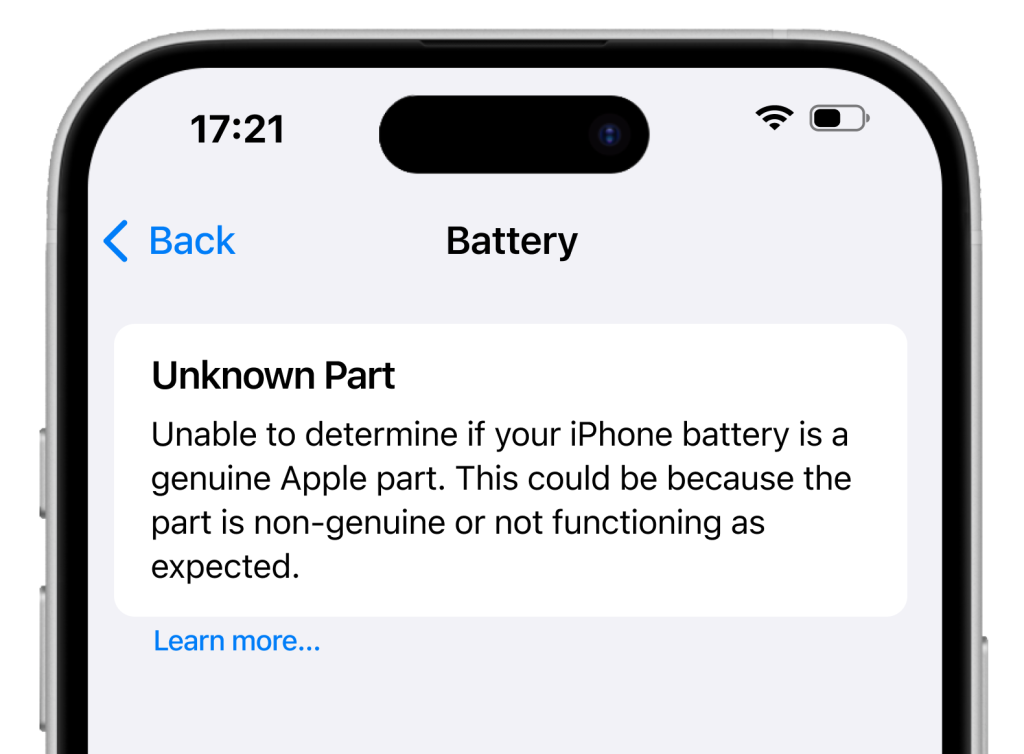
This message appears because a part of your iPhone – such as the battery, screen, or camera – was replaced during refurbishment. The OEM [original equipment manufacturer] restricts component verification to its own repair network, so any replacement done outside of the OEM’s authorized service centers will trigger this notification.
Rest assured, this does not affect your phone’s performance or functionality in any way. Swappie uses only high-quality, EU-certified, rigorously tested parts to ensure your device works reliably and meets our strict quality standards. This message does not affect your iPhone’s performance, safety, or how long it lasts.
How to check your iPhone’s parts and service history?
If you’re using iOS 15.2 or later, you can check which parts have been replaced on your iPhone by going to: Settings > General > About
There, you’ll find the Parts and Service History section—this will appear only if one or more components have been replaced.
- Unknown Part: This means the part was replaced using a non-OEM component or the system can’t verify the part. It does not affect your phone’s performance, safety, or reliability.
- Used Part (iPhone 15 and later on iOS 18): This message appears if the replaced part was previously installed in another iPhone.
- Genuine Part: This means the part was replaced using genuine parts and processes
If you are using iOS earlier than 15.2, you won’t see a full parts history. Instead, your iPhone will simply show a message if a replaced part is identified as “Unknown.”
Will the warning message go away?
Yes. Here’s what you can expect:
- A notification will appear the first time you unlock the phone, and again after five days
- The message will stay visible in Parts and Service History but won’t affect your phone’s use
- You’ll still have full access to all features – like battery percentage and display brightness – just like normal
What should I do if my phone says “Finish Repair”?
In some cases, you may be prompted to complete the repair process on your device. This is a quick calibration step and easy to complete.
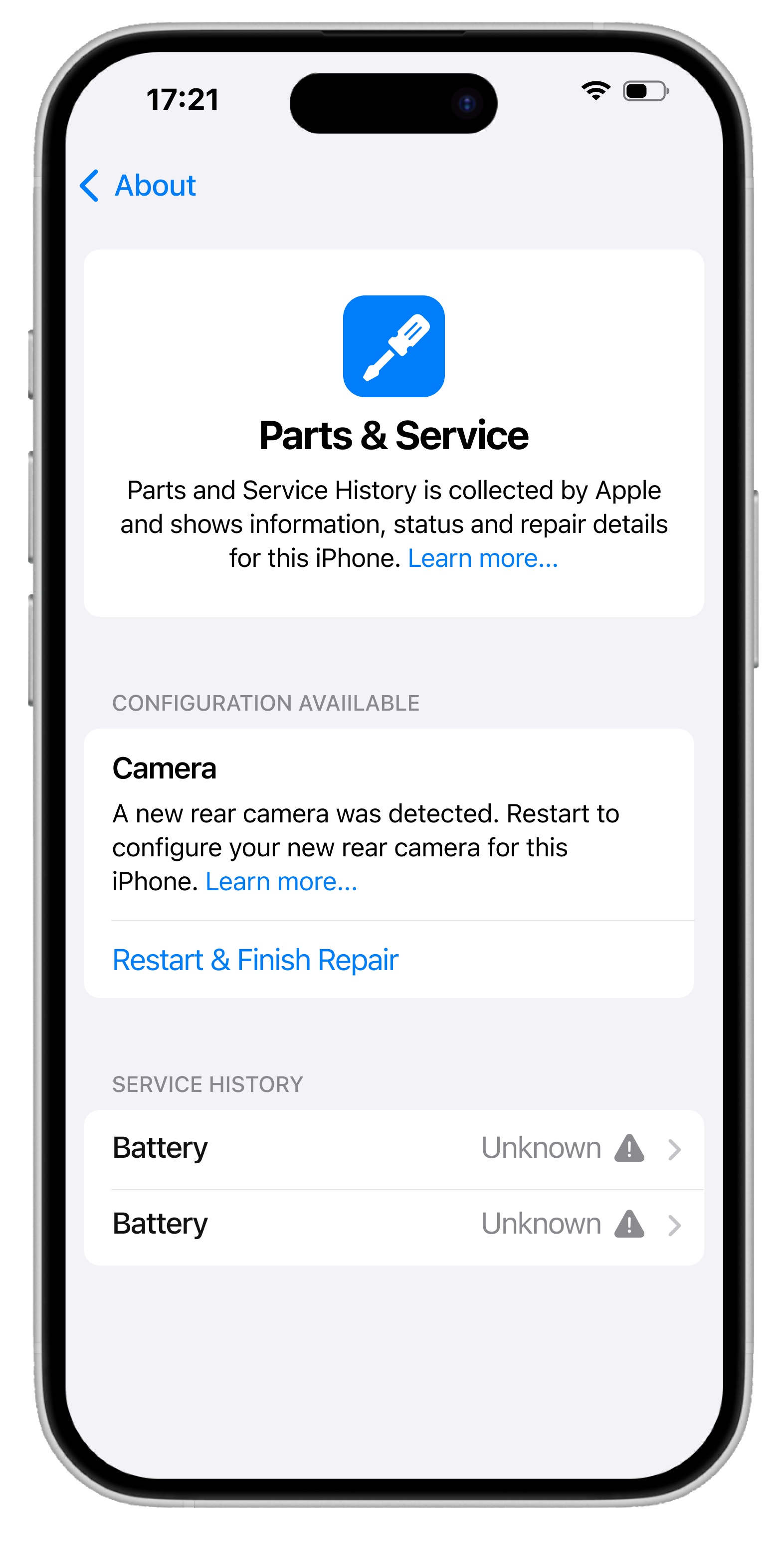
Just follow these instructions:
- Make sure your phone is running the latest version of iOS
- Go to Settings > General > About > Parts & Service History
- Tap Restart & Finish Repair
- Follow the on-screen instructions
This will finalize the part calibration and remove any remaining setup steps.